The complete Gemini Notebook (called NotebookLM before July 2026) guide
All 9 tools in one go, broken down from running a one-person AI company

黃志弘 Leo
Published 2026-04-10 · Updated 2026-10-07 · 12 readers
By Leo Huang · @kanisleo328 · compiled Apr 2026, updated Oct 2026 for the new interface
9 tools, each with screenshots and steps
Full coverage: Gemini Notebook's 9 Studio tools (Audio Overview, Slides, Video Overview, Mind Maps, Reports, Flashcards, Quizzes, Infographic, Data Table), each with a screenshot, the steps, and the traps I actually hit. (Tested and written up in Apr 2026; after the September 2026 redesign, the Reports, Flashcards, Quizzes and Video Overview pages were retested and reshot in October.) You also get how to create a notebook, how to pick sources, how to use YouTube videos as study material, how Deep Research runs, and how the two-way Gemini integration works.
How it is written: follow-along style. I assume you clicked in today because you want to learn the tool, so there is no "what is AI" or "why Gemini Notebook" opener you already know. Every step has a screenshot, and every feature comes with when to use it and what went wrong for me. By the end you should be able to open Gemini Notebook and start.
Who this is for: office workers about to organize a pile of material with AI, one-person company owners, creators, students, researchers.
The Gemini Notebook Studio panel still has 9 tools, answers come only from your sources so it makes things up far less than a general chatbot, and most features are free.
If you already pay for Gemini, do not let this one go to waste.
Google AI Pro at $19.99/month = Gemini + 4x Gemini Notebook limits + 5TB of storage, all in one subscription.
The free plan goes a long way (standard limits, reset every 5 hours), but if you are already on Gemini, the 4x Gemini Notebook limits are included.
Gemini Notebook and ChatGPT are not the same kind of thing
ChatGPT and Claude will talk about anything. Ask them a question and they answer from their training data. Flexible, but they can also invent an answer, known as hallucination.
Gemini Notebook works the other way. It answers only from the sources you upload, with nothing added. Give it three PDFs and it reads those three, and nothing else on the web. Every answer carries a citation marker, and one click jumps to the passage.
So it is much less likely to make things up. Ask it what a paper concludes and it answers from the paper, not from something stitched together from the web. That said, the bottom of the screen also reads "Gemini Notebook can make mistakes, so double-check responses", so for anything important, click the citation and check the original.
This design idea has a name: source-grounded. It is the biggest difference between Gemini Notebook and other AI, and the reason it fits the case where you have a pile of material to understand, and does not fit the case where you want to toss ideas around.
· Answers from a specific set of material → Gemini Notebook (reads only your material, with citations)
· General knowledge, or asking AI to help you think up ideas → ChatGPT / Claude (flexible, but it can make things up)
· Analyzing very long documents (200 pages and up) → Claude (Opus and Sonnet have a 1M token context window)
· Writing code with AI → Claude Code (what I use every day)
1Create your first notebook
Gemini Notebook organizes everything into notebooks.
One notebook = one topic.
For example: competitor research in one, this month's YouTube learning in another.
The free plan gives you 100 notebooks with 50 sources each, which is plenty for most people.
Step 1 Open the site and sign in with Google
Open notebooklm.google.com; it now redirects to the new address, notebook.google.com. Sign in with your Google account (a Gmail account works).
The home page shows Google's featured public notebooks at the top, and your own under "Recent notebooks" below.
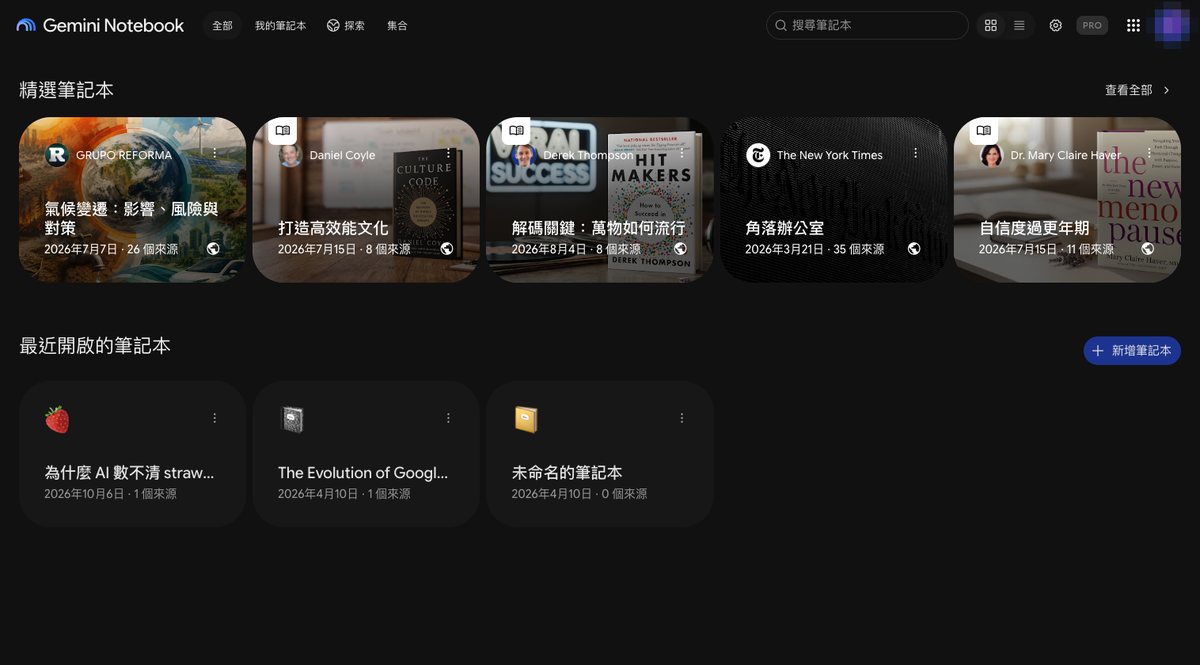
Step 2 Click "Create notebook"
Click "+ Create notebook" to the right of your recent notebooks. If you are already inside a notebook, the "+ Create notebook" at the top works too.
The first time you open a new notebook, an intro dialog may pop up about the September 2026 update: usage limits that reset every 5 hours, usage counted by compute, and generation queued in the background for later. Close it with the X at the top right.
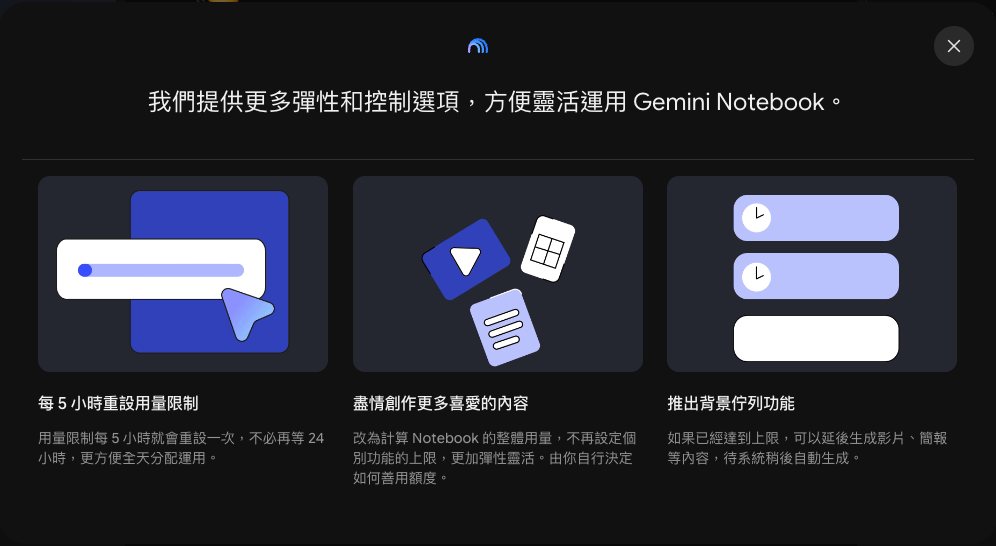
Step 3 Add the first source and the notebook is ready
A new notebook starts out untitled. Adding sources is in the next chapter. In my case, after the first source was added, Gemini Notebook named the notebook from its content and gave it an emoji. To pick your own name, click the notebook title in the top left, type the new name, and press Enter to save it.
2Feed it good material and the AI gets smart
How smart Gemini Notebook is depends entirely on what you feed it.
Give it one well-written article and it answers precise questions.
Give it a pile of messy notes and the answers come back messy.
Supported sources:
- PDF: papers, reports, ebooks. Upload them or import from Google Drive
- YouTube videos: paste the link and it pulls the captions (the video has to be public and have captions)
- Web pages: paste the URL and it extracts the content
- Google Docs / Slides / Sheets: import straight from Drive
- Word / PowerPoint / plain text / CSV: all supported
- Audio files (MP3, WAV): transcribed to text automatically
- Images: listed among the supported file types in the add source dialog
- Books: the add source dialog has a new Books button for Google Play Books titles
- Paste text: dropping raw text straight in works too
Each source holds up to 500,000 words (roughly 1000 pages of A4), with a 200MB file cap. Sources per notebook depend on the plan: 50 free, 100 on Plus, 300 on Pro, 500 or 600 on Ultra. Enough for 99% of what people do.
Step 1 Click "Add sources" at the top left
Open the notebook. At the top of the "Sources" column on the left there is "+ Add sources". Click it and the add source dialog opens.
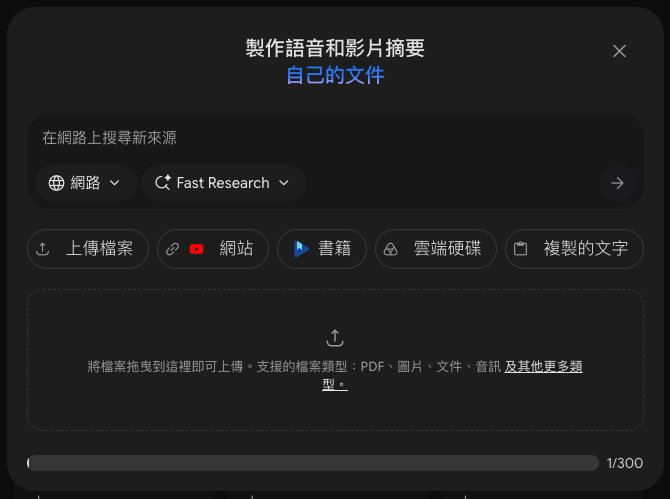
Step 2 Pick a source type, upload or paste a link
Five buttons: upload files, websites (YouTube links go here too), books, Drive, copied text. You can also drag files into the dashed box. The search box at the top finds new sources on the web, covered with Deep Research in chapter 5.
Step 3 Wait a few seconds and check the source appears on the left
The source showing up in the left list means it worked, and the checkbox next to it means it will be used for answers. Click it to read the summary the AI wrote. If it never appears, the usual causes are a file that is too big, an unsupported format, or a YouTube video without captions.
Tip: you can add several sources at once. Keep one topic per notebook instead of dumping everything into one.
3YouTube learning accelerator
Watching passively vs asking the AI
Most people learn from YouTube by watching start to finish.
In a 60 minute video, maybe 10 minutes are actually about your problem.
You cannot tell which 10 minutes, so you watch the whole thing.
Gemini Notebook changes the flow:
Paste the video link
→ the AI pulls the captions
→ you ask "does this video talk about X?"
→ it tells you which part, quoting the line.
Passive intake becomes active questioning.
The learning speed is not comparable.
Summaries, Q&A, podcasts, flashcards and quizzes
- Automatic summary: once the video is in, the AI writes up the highlights, so you get the core points in 2 minutes
- Interactive Q&A: ask anything about the video, and the answer marks which part of it came from
- Turn it into a podcast: with Audio Overview, two AI hosts talk through the key points in conversation (Traditional Chinese supported)
- Flashcards + quizzes: generated from the video automatically, so you can check you really understood it
The video has to be public (private or unlisted will not import). It needs captions, and YouTube's auto-generated ones are fine. Videos uploaded less than 72 hours ago may not import yet. Only the text of the captions is read, the picture is not analyzed.
Step 1 Click "Add sources" → "Websites" and paste the YouTube URL
In the notebook, click "Add sources", pick "Websites" (the button has a YouTube icon), paste the video URL (for example https://youtube.com/watch?v=...), click Insert at the bottom right, and wait for the AI to process it.
Step 2 Ask questions in the chat box in the middle
Once the source shows up on the left, ask in the chat box at the bottom of the middle column: "what are the three key points of this video?" Click the number markers in the answer to jump to the caption text.
Step 3 For a podcast or flashcards, go to the Studio panel on the right
For a podcast: click "Audio Overview" in the Studio panel. The language defaults to your Google account language, so check it before generating. For flashcards: click "Flashcards", set it up, and click "Generate now".
Going further: add 5-10 videos on the same topic at once, then ask "what do these videos agree on? where do they contradict each other?" That one works very well.
4Nine tools, nine outputs from the same material
April 2026: the Studio panel grew from 6 tools to 9. After the September 2026 redesign it is still these 9
Same material, different ways to digest it
Upload one PDF and Gemini Notebook can help you understand it in nine different ways. You do not need all of them, pick by what you need. When I opened the Studio panel in April 2026 and counted, there were 9 tools: Audio Overview, Slides, Video Overview, Mind Maps, Reports, Flashcards, Quizzes, Infographic, Data Table. Plenty of Chinese-language guides still say six tools, which is out of date. Go by this page.
When I opened it again in October 2026 it was still these 9, two per row. Reports now carries a "New" label, and everything you generate is listed under the tools.
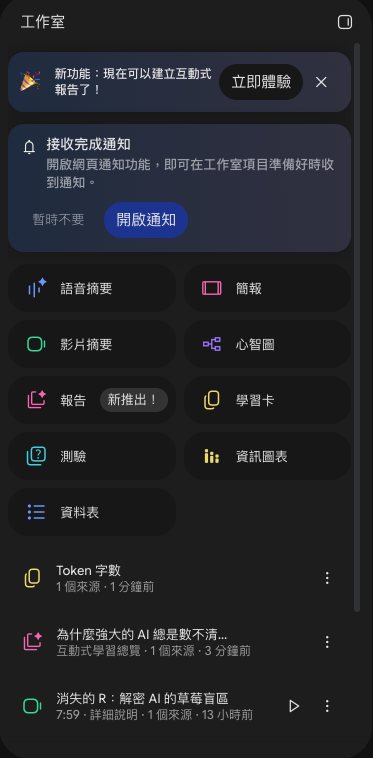
Before generating anything, every dialog shows an "AI usage" bar at the bottom left, with what you have used and what this run is expected to cost.
AI podcast, two hosts talking through your key points
Turns your material into a 5-15 minute conversation show.
Two AI hosts discuss the key points in your sources, chat style.
Traditional Chinese supported.
Good for: listening on the commute, or getting through a long document fast. It counts against the 5 hour quota, and works on the free plan.
Mind maps, see the shape of the knowledge
Pulls the core concepts out of your sources and draws them as a visual mind map. Good for seeing how ideas relate.
Reports, interactive Learning Overview and documents
Turns your sources into a structured report. Since September 2026 there are two formats: Interactive (Learning Overview, with suggested flashcards, quizzes and infographics embedded in the report) and Document (Create Your Own, Briefing Doc, Study Guide, Blog Post, plus templates the AI suggests from your material).
Flashcards and quizzes, proof that you understood it
The AI writes questions from your sources to test how well you followed. Good for exam prep or checking what stuck. Quizzes now let you pick question types (Multiple Choice, Multiple Select, Fill in the Blank, Short Answer), and you can add, edit and delete cards and questions after generating.
Slides, turn your sources into a deck you can present
Picks the key points out of your sources and arranges them into a structured deck. Choose "detailed presentation" or "presentation slides", export PDF or PPTX, then keep editing in Keynote or Google Slides.
Good for: handing in a report, giving a presentation, running a workshop.
Video Overview, a short video with narration and illustrations
Turns your sources into a video with narration and illustrations. Two formats: a vertical Short of about 60 seconds, and a horizontal Explainer; Explainer has 10 visual styles (including Auto-select and Custom).
Infographic, turn your sources into a visual
Generates an infographic from your sources. Good for social posts, illustrations in a report, or explaining one complex idea in a single image.
Added April 2026, and Chinese-language guides have barely mentioned it.
Data Table, unstructured text into a table
Finds comparable data in your sources and lays it out as a structured table. Good for competitor comparisons, feature matrices, price lists.
Added April 2026.
5Deep Research, let the AI do the digging
Deep Research in Gemini Notebook runs multi-step analysis on its own.
What you get back is a full research report, with a source behind every sentence.
It starts from the web search box in the "Sources" column on the left, which has a dropdown to switch between two modes:
- Fast Research: a quick synthesis of your sources, results in minutes
- Deep Research: a detailed investigation, searching the web or only your Google Drive
Available on the free plan (it counts against your quota), and the report can go straight back into the notebook.
6Gemini + Gemini Notebook, syncing both ways
New feature, 2026/04/08
Gemini finally gets its own Projects
ChatGPT had Projects. Claude had Projects.
Gemini was the one without.
On April 8, 2026, Google's answer arrived:
Gemini Notebook goes straight into Gemini, and notebooks become Gemini's project system.
A notebook created in Gemini syncs to Gemini Notebook, and the other way around.
So mid-chat in Gemini you can point it at material you already organized,
with no re-uploading.
7How creators use it
Competitor research
Drop 5-10 articles or videos from people in your field into one notebook and ask: "what three topics do they cover most? what angle have I not covered yet?"
YouTube learning → content
After watching a few related videos, put them all into Gemini Notebook → generate the summary → make a "what I learned" podcast with Audio Overview → then write the takeaways up as a Threads post. One batch of material, three outputs.
Gathering material for a long article
When writing a guide, put 5-10 related sources into Gemini Notebook first → ask "what do these agree on?" and "where do they conflict?" → use the answers as the skeleton of the draft.
Customer records as a knowledge base
If you have a pile of customer questions (form replies, email threads), put them all into Gemini Notebook as an internal knowledge base. Next time someone asks something similar, ask the AI instead of digging through history.
8Free or paid, the limits on each plan
The free plan is enough for most people
The free plan is already very complete.
Most of the nine Studio tools are free to use.
The free plan gets standard limits that reset every 5 hours, and 50 sources per notebook.
Paying mainly raises the ceilings (more quota, more sources, more notebooks).
Since September 2026, Gemini Notebook no longer counts "times per day". Usage is compute-based: the more complex the question and the heavier the feature, the more quota it uses. The quota resets every 5 hours, and there is also a weekly limit. Per plan:
| Plan | Monthly (US) | Gemini Notebook limits | Notebooks / sources each |
|---|---|---|---|
| Free | $0 | Standard | 100 / 50 |
| AI Plus | $4.99 | 2x standard | 200 / 100 |
| AI Pro | $19.99 | 4x standard | 500 / 300 |
| AI Ultra | from $99.99 | 5x or 20x of Pro | 500 / 500 or 600 |
Ultra has two tiers: $99.99 is 5x of Pro, $199.99 is 20x of Pro. Google's page: Manage your Gemini Notebook usage limits.
Gear icon → "Usage" to see what you have left
Click the gear icon (Settings) at the top right and choose "Usage". You see two bars: "Current AI usage" is the 5 hour quota, "Weekly limit" is the week, each with the percent used and when it resets.
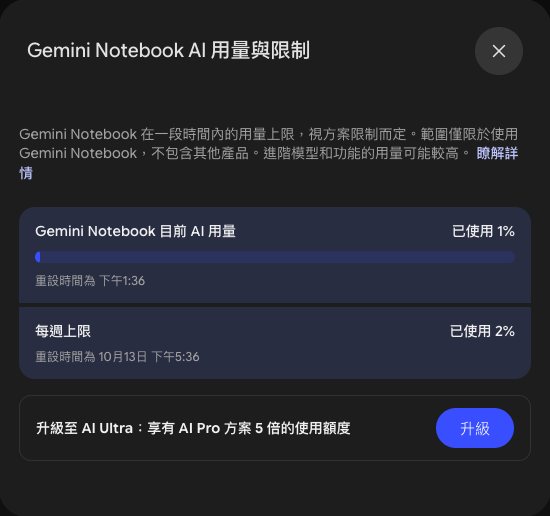
When the quota runs out, Studio dialogs let you click "Generate later", and Gemini Notebook generates it once the quota is back.
Gear icon → "Output language" to change the language of answers and outputs
The language of generated audio, video and reports follows your Google account language by default. To change it everywhere, click the gear, choose "Output language", pick a language under the override setting, and click Save. Each tool's dialog also has "Choose language" for a one-off change.

About the author
I'm Leo Huang, an indie developer in Taiwan, and right now I run a one-person AI company. No employees, no office. Code, design, community, copy, all of it is me plus a full set of AI tools.
I only tried Gemini Notebook recently, and it is genuinely good. I gathered how the people who use it well work, and every feature here comes with a screenshot from a run on my own Pro account, so you do not have to stitch a workflow together out of a pile of other guides. Just follow along.
Where I have not run a feature myself (Cinematic Video Overview: with the interface in English my Pro account shows the option, but I have not generated one), I say plainly that I did not capture it, then cite sources I read and trust, instead of pretending I ran it myself.