Build a web page in 1 day with 0 coding background
The full 12-prompt guide · GitHub and Vercel sign-up steps included

黃志弘 Leo
Published 2026-04-21 · Updated 2026-10-08 · 3 readers
Two ways to do it without installing Claude Code
This page uses Claude Code, GitHub and Vercel, so the code lives in your own GitHub and later edits or extra pages are easy. If you only need a single page you can share quickly, there are two simpler routes:
- Build it right in claude.ai: describe the page to Claude, then click Publish at the top right of the result to get a public link. Viewers do not need a Claude account, and the free plan can publish. The address is on Claude's domain and cannot use your own domain; once you unpublish, that page cannot be published again (Anthropic help).
- Connect Vercel in claude.ai: on Pro and above you can add Vercel under Connectors in settings, then ask Claude to deploy the finished page and get a vercel.app address. You need a Vercel account, but no Claude Code install and no GitHub (Vercel docs).
Both suit pages you finish once and rarely touch, like a profile card or an event page. For a site you will keep running and updating, follow the full process below.
15 minutes of prep: install 3 things, create 2 accounts
Get these ready before you start. You only do it once, and the second web page needs none of it.
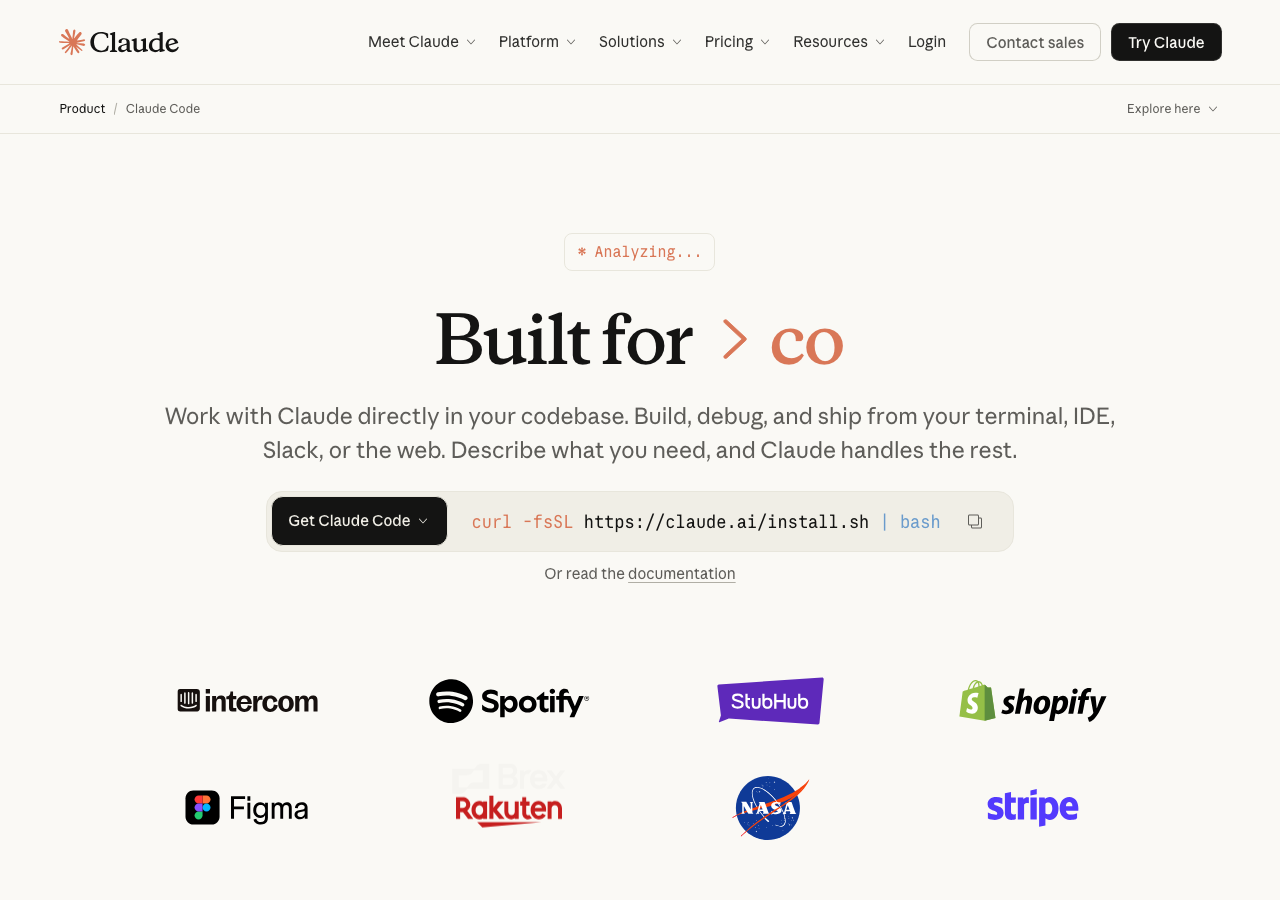
0-1Install Claude Code
On Mac
Open Terminal (a built-in app, search "Terminal" in Spotlight), then copy this line, paste it and press Enter:
curl -fsSL https://claude.ai/install.sh | bashThis is Anthropic's official native installer. One line installs it and keeps it on the latest version.
On Windows
- Install Git for Windows first if you can (click Next all the way). Claude Code uses its Git Bash to run commands. It is optional, and without it Claude Code falls back to PowerShell
- Open PowerShell (search "PowerShell" and press Enter)
- Paste this line:
irm https://claude.ai/install.ps1 | iexSeeing 'irm' is not recognized means you opened CMD instead of PowerShell. Close it, open it again, and search for "PowerShell" this time.
claude --version in Terminal. A version number printing back means it worked.
0-2Start Claude Code for the first time
claude in Terminal / PowerShell and press Enter. The first run asks you to log in.- Type
claudeand press Enter - It opens a browser on the Anthropic login page. Log in with your Anthropic account, the same one you use for Claude on the web
- Once you are logged in the browser tells you it is safe to close the window. Back in Terminal you will see it waiting for your command
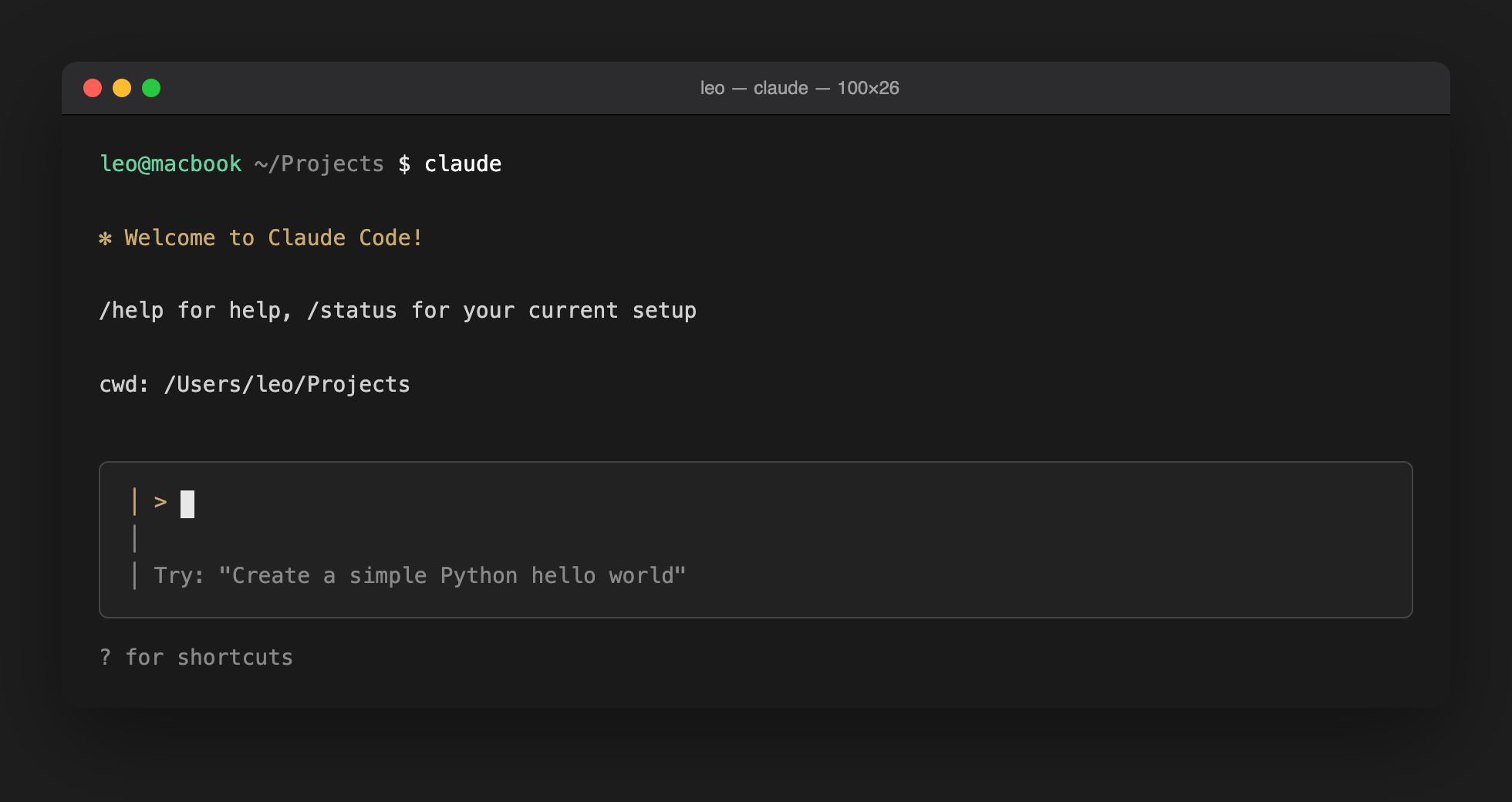
claude in Terminal and pressing Enter gives you this screen. The prompt line waiting for your text means Claude Code is ready.0-3Create a GitHub account
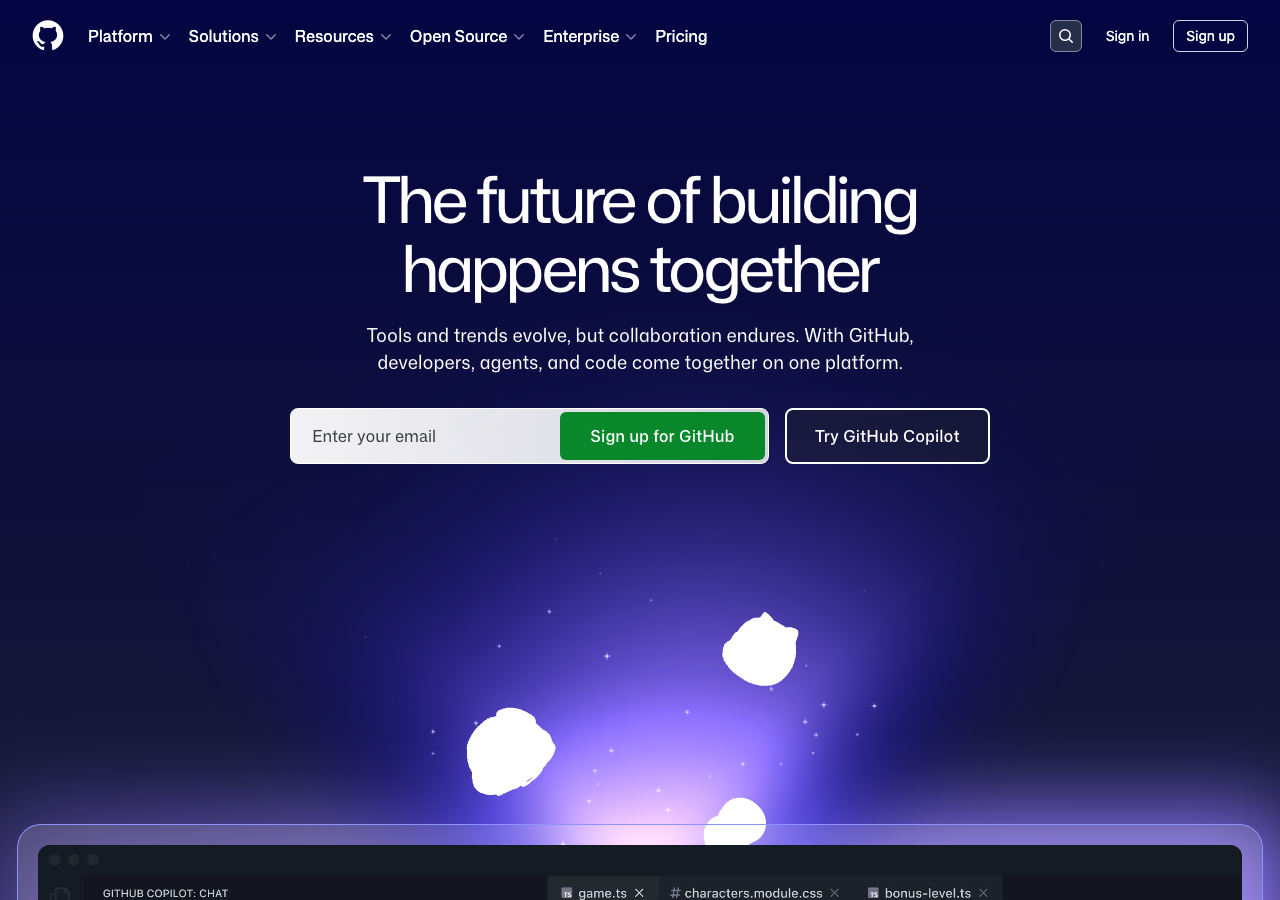
- Go to github.com, then click the top-right Sign up
- Enter your email → set a password → pick a username (it shows up in your future page address, so keep it memorable and lowercase)
- GitHub emails you a verification code, type it back in
- It then asks a few personalization questions (what you use it for, your experience). Any answer is fine
- Once you are in you land on the GitHub home page, the one with the green New button on the left
0-4Create a Vercel account
- Go to vercel.com, then click the top-right Sign Up
- Choose Continue with GitHub
- GitHub asks whether to let Vercel access your account → click Authorize Vercel
- Vercel asks for your name and a team name. Working on your own, anything you type is fine
- When the Vercel Dashboard shows up, you are done
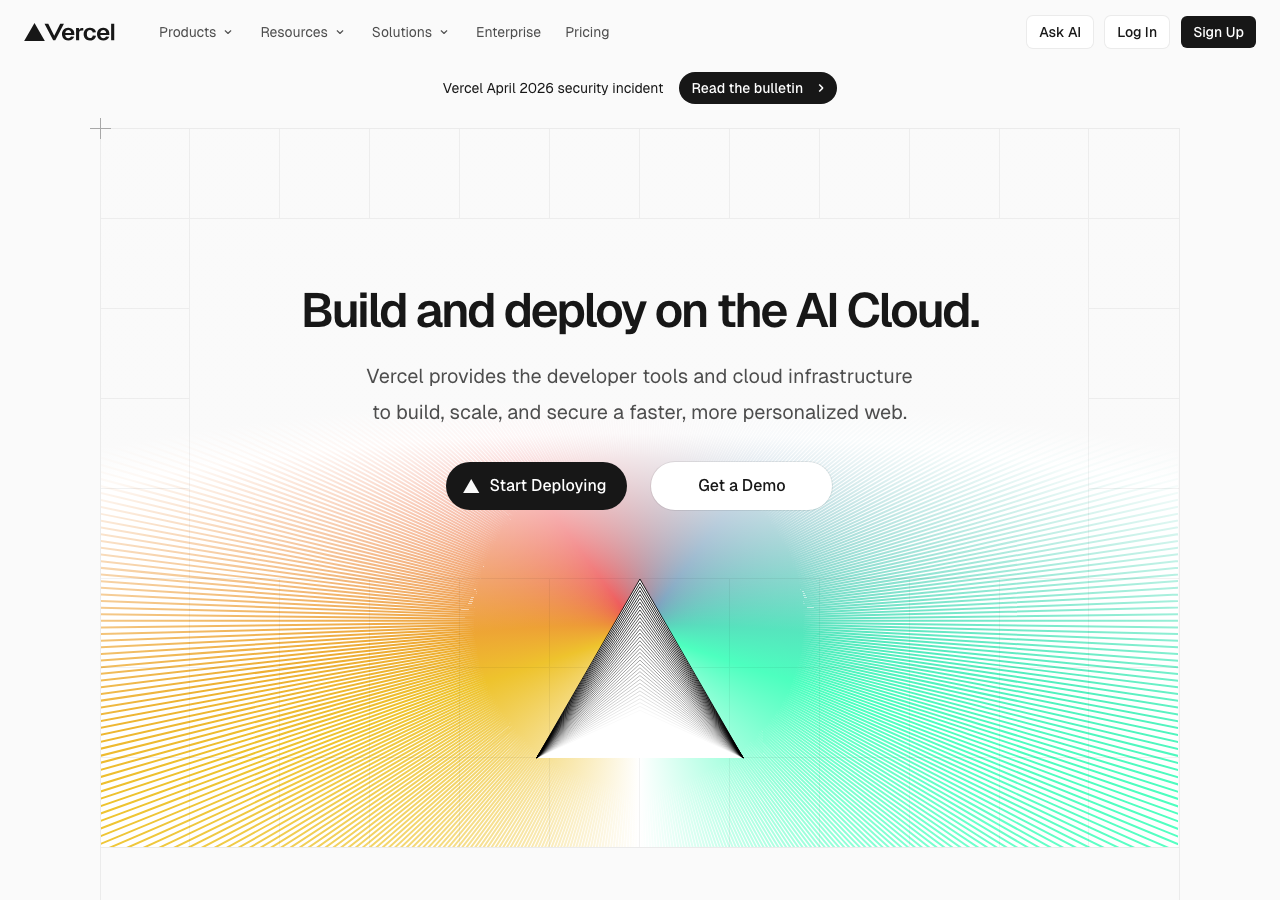
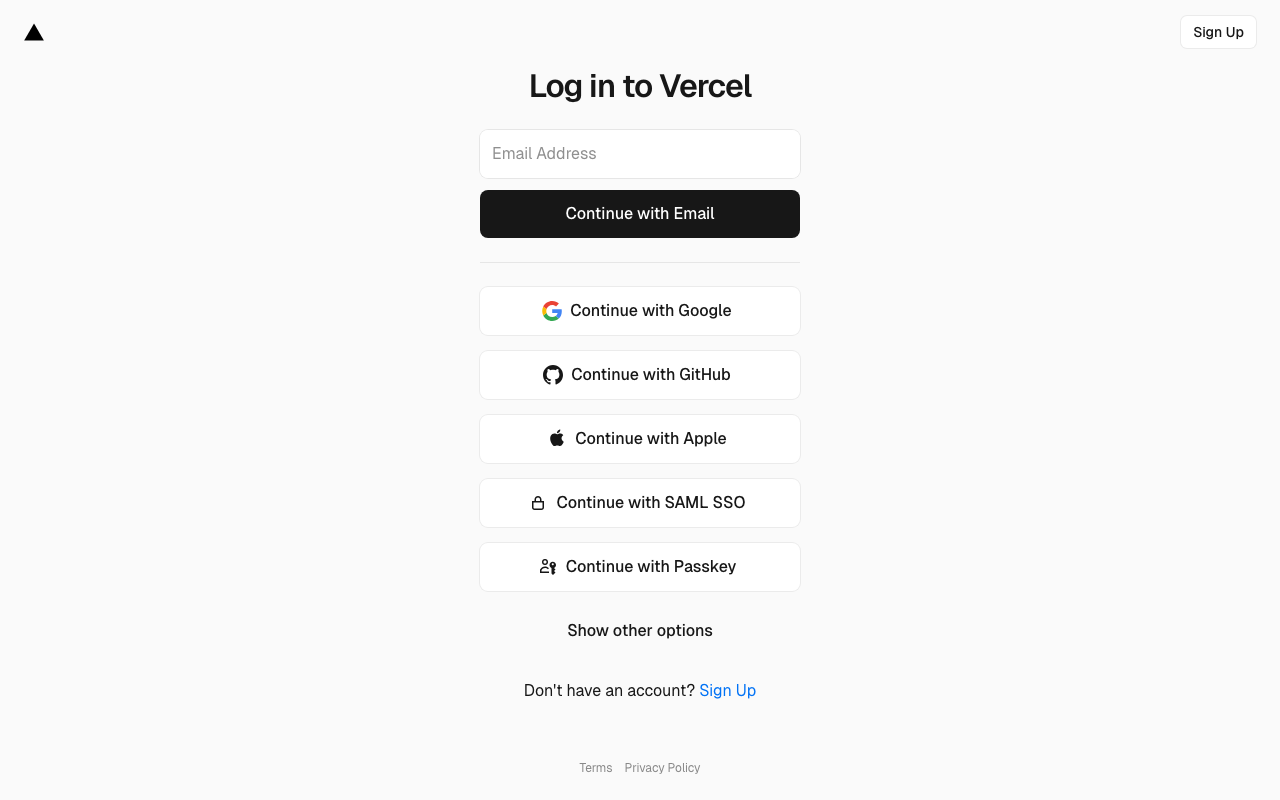
☐ You can type
claude in Terminal, press Enter, and get a prompt waiting for you☐ You can log in to GitHub and see your own dashboard
☐ You can log in to Vercel and see your own dashboard
All three ticked → keep going.
12 prompts: talk a web page into existence with Claude
From here you do one thing: paste each prompt below into Claude Code in order, watch Claude finish → press Enter → paste the next one. Every prompt has a copy button in its top right.
~/Projects:
cd ~/Projects
claudeSTEP 1Requirements (2 prompts)
Create a folder called my-website with an index.html inside. I want a one-page site that introduces my services.Split the site into 4 sections: a headline, about me, 3 services, and contact.
STEP 2Content (2 prompts)
Put dummy text and placeholder images in every section so I can see the overall feel.Turn the 3 services into cards, each with a title, a short description and a price.
STEP 3Visuals (4 prompts)
Change the overall style to the clean, simple feel of Apple's website.Change the main palette to gold on black, like a high-end boutique.It has to look good on a phone too, with text that is not cramped.Look at this page and tell me what could be better. Give me 3 suggestions, then apply them.

STEP 4Features (1 prompt)
Add my IG and Threads icons at the bottom of the page, linking to https://instagram.com/your-handle and https://threads.com/@your-handleSTEP 5GitHub (1 prompt)
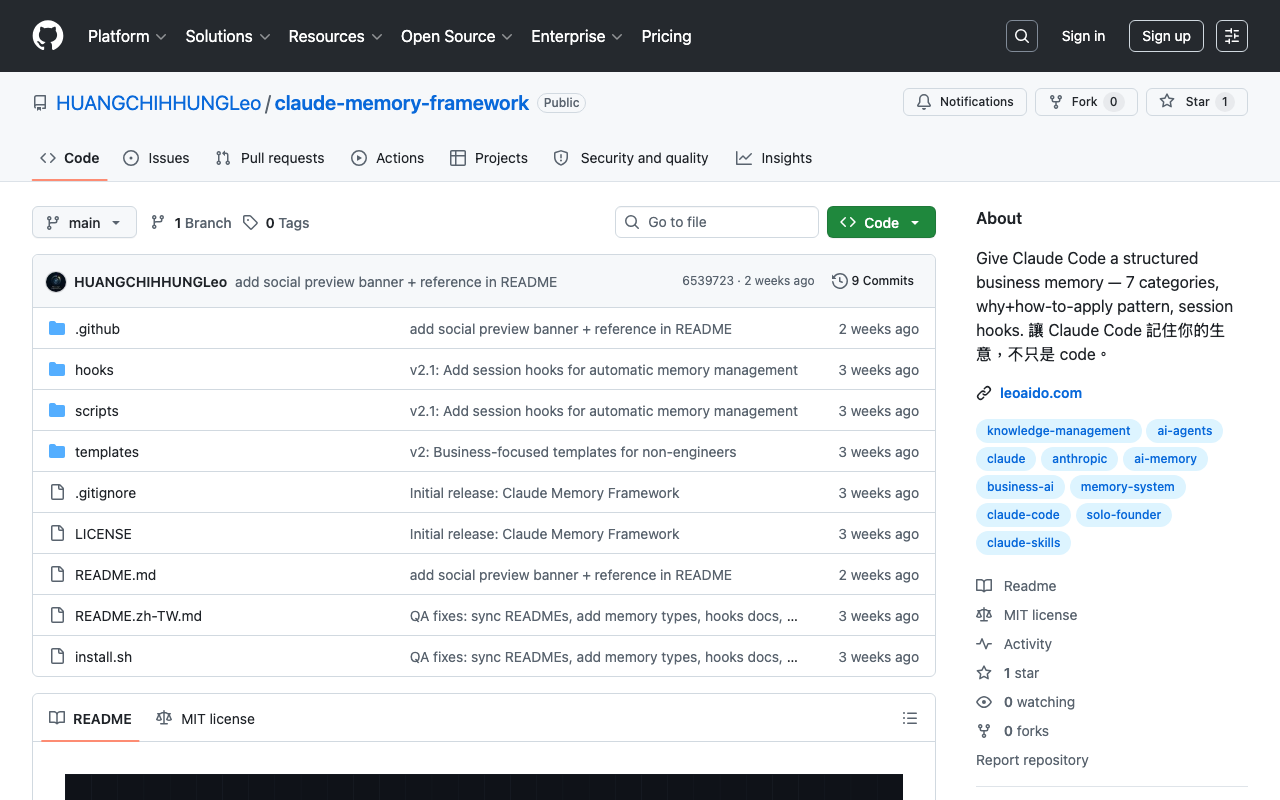
Upload this to GitHub, name the repo my-website.- Runs
git initto initialize the repo - Asks for your GitHub account on the first run, just follow its login instructions
- Creates a repo called my-website on GitHub
- Pushes all the files up
gh auth login), choose GitHub.com → HTTPS → Login with a web browser. It gives you an 8-character confirmation code, copy it and paste it in the browser.
STEP 6Vercel deploy (2 prompts)
Connect my-website on GitHub to Vercel, deploy it, and give me the URL.- Calls the Vercel CLI (the first run asks you to log in to Vercel, just press Enter at the prompt and let it open a browser)
- Links my-website to your Vercel account
- Deploys automatically
- Hands you a URL when it is done, something like
my-website-xxxx.vercel.app
Open that URL. If I see my site, it worked.
Handling errors in Claude Code
Claude Code does not always nail it first try. You may run into:
- It said it would fix something and broke it: tell it 「that last change broke things, roll it back」. It will restore with git.
- Red text in Terminal: copy the red text straight into Claude and say 「I'm stuck here」.
- It asks yes / no and you do not know which to pick: type 「I do not follow, explain it before I choose」. It will explain.
- Nothing new shows up on GitHub or Vercel: wait 1 minute and refresh. The cloud lags a little.
Here is what I am seeing:
[paste the screen / error message here]
What I want is [the result you want].
Help me work out how to fix it.I will build it for you, from NT$10,000
Phone but no computer, stuck halfway, or you would rather hand it to someone who does this. Any of those, I can take it.
Includes the GitHub repo, the Vercel URL, and a short video showing how to change text and images, so you maintain it yourself after handover.
The limits of building web pages with AI
Those 12 prompts take you from 0 to live. What you get is a one-page static site , text, images and link buttons on screen, with no member login, no database storing anything, no backend code running in the cloud. A page like this just puts finished files on Vercel for people to look at. Claude writes it and it runs, and changing text or images will not accidentally break another feature. That is why with 0 background Claude gets it right almost first try, and why it feels like you chatted your way to a website.
Once the site gets more complex, with sign-up and login, payments, a backend writing to a database, or data linked across pages, so-called AI vibe coding (writing by feel, never reading the actual code) starts to go wrong:
- Stability: AI invents function names, package versions and API paths that look right and do not run. A change in one place quietly breaks another, and without review you never notice.
- Security: passwords, payments, API keys and user data are where AI most easily writes a version that runs but is not safe. Reports have tested AI-generated apps and found dozens of vulnerabilities.
- Maintainability: change whatever comes to mind and 3 months later you cannot read your own structure, which makes adding features painful.
This page covers the simple kind of site described above, mostly display, so none of those three risks apply, and following along with 0 background is fine. If you want something bigger, a membership system, e-commerce, SaaS, the three risks show up one by one. At that point chatting with AI is no longer enough, and the approach becomes AI for speed with a human checking.
FAQ
Q: Can I really build this with no coding experience at all?
Q: How much does it cost in total?
Q: Can I follow along on a phone?
Q: Do I have to keep paying for the page?
xxx.vercel.app address stays up as long as you want. You only pay if you buy your own domain (yourname.com, say), which runs about NT$500 a year. The Vercel free plan (Hobby) is for personal, non-commercial use. A portfolio is fine; a site that promotes a service or earns money from client work needs the Pro plan under Vercel's rules.