Meta API permissions setup guide
Facebook, Instagram and Threads, turned on step by step so AI can post for you within the rules

黃志弘 Leo
Published 2026-06-03 · 14 readers
Want your code or your AI to schedule posts to IG, Threads and your FB Page? The right way is through the official Meta Graph API to get a token, the route the platform allows. This page walks you through it. Every command has one-click copy, and you can follow it with no engineering background.
1A few concepts first
① One Meta App covers all three platforms
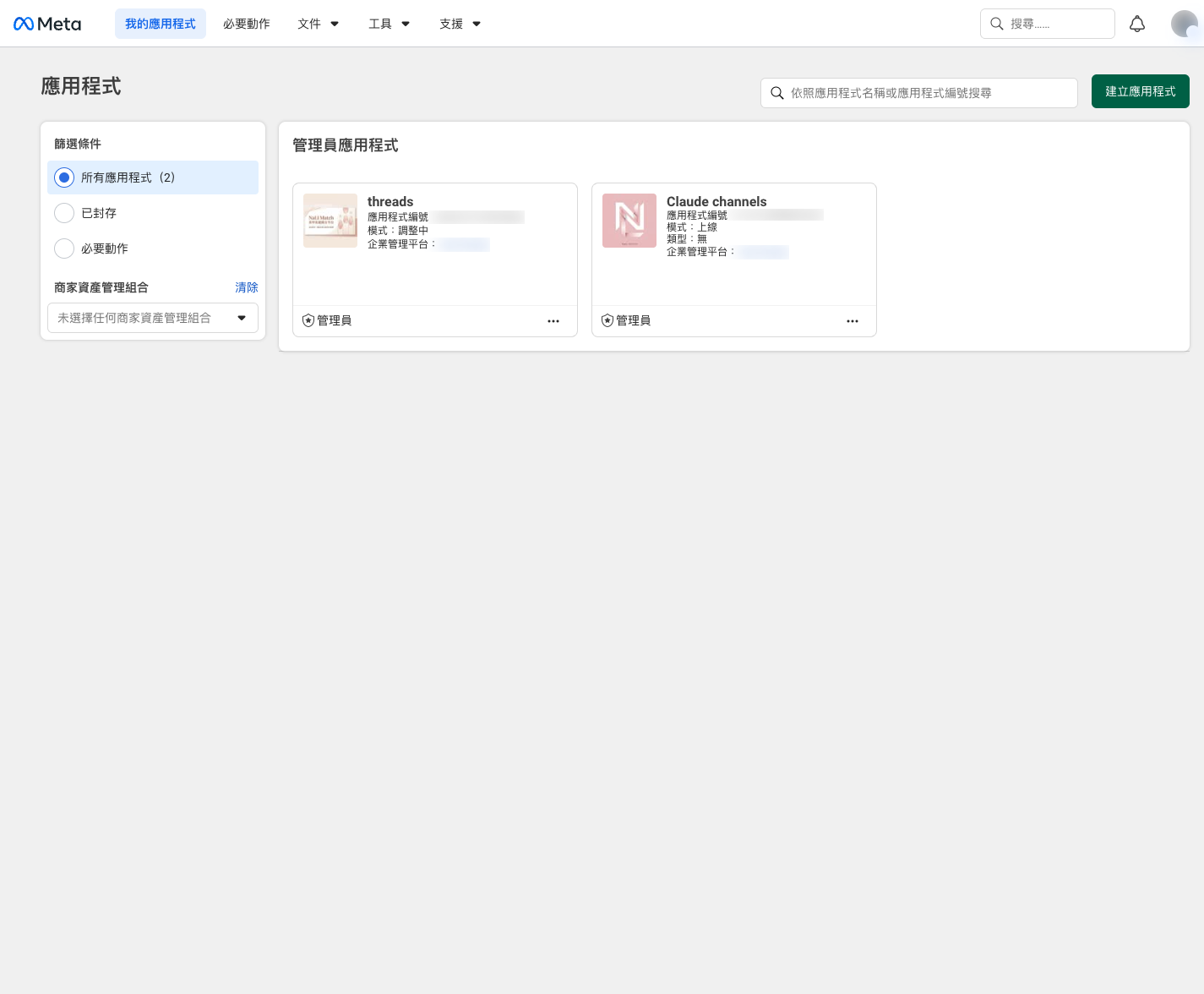
API permissions for your FB Page, IG and Threads all hang off the same Meta App. Pick one app and keep adding products to it, no need to keep creating new ones.
② There are three kinds of token, with very different lifespans
A short-lived token lasts about 1 to 2 hours, a long-lived one 60 days, and a Facebook Page token can be permanent. For real auto-posting, use the 60 day long-lived one and set up auto-refresh.
③ Why build an app and get a token? (what this whole thing is for)
Think of a Meta App as a permission request form between you and Meta, plus one restricted key. Meta does not hand you an account password, it issues a token that can only do specific things. That way it knows who is using which permission, and it can revoke access at any time.
Meta opens this up because third-party tools make businesses stickier, post more content and buy more ads. That is why this is the official channel for automation that stays within the rules.
④ Development mode vs app review, what is the difference?
Development mode (the app default) : no review, works right away, but it can only touch your own account plus the testers you add. Posting to your own accounts, or serving a handful of clients, is this mode.
App review (Advanced Access) : needed only when the general public should be able to use your app. Meta reviews your use case, asks for a screen recording, and may want business verification.
In one line: development mode plays with your own accounts and skips review, app review plays with everyone's accounts and has to pass. For your own use, or setting up a client, development mode is enough.
2Build a Meta App
Get your App ID and App Secret
Go to developers.facebook.com/apps/ → Create app, fill in the name and contact email, pick a use case (for managing an FB Page pick managing all Page content, for IG or Threads only you can pick Other for now). Once it is built, go to Settings → Basic and note down the App ID and App Secret.
3Get a token, exchange it for 60 days
FB / Instagram
Use Graph API Explorer to pick the app, tick the permissions and generate a short-lived token, then run the line below to exchange it for the 60 day version (swap the uppercase placeholders for your own values):
curl "https://graph.facebook.com/v25.0/oauth/access_token?grant_type=fb_exchange_token&client_id=APP_ID&client_secret=APP_SECRET&fb_exchange_token=SHORT_TOKEN"Publishing to Instagram takes two calls
First switch IG to a business or creator account and add the Instagram product. To publish: create the container, then publish it.
curl -X POST "https://graph.facebook.com/v25.0/IG_USER_ID/media" -d "image_url=IMAGE_URL" -d "caption=YOUR_CAPTION" -d "access_token=TOKEN"
curl -X POST "https://graph.facebook.com/v25.0/IG_USER_ID/media_publish" -d "creation_id=ID_FROM_PREVIOUS_STEP" -d "access_token=TOKEN"instagram_business_content_publish, with Facebook Login it is instagram_content_publish. Go by whatever the dashboard shows.4Threads essentials
Separate API, separate App ID
Threads has its own API (graph.threads.net) and its own App ID. In the app, add the Access the Threads API use case and tick the permissions (threads_basic, threads_content_publish, threads_manage_replies…), then fill in the redirect URL under Settings. Getting a token goes through OAuth:
curl -X POST "https://graph.threads.net/oauth/access_token" -d "client_id=THREADS_APP_ID" -d "client_secret=THREADS_SECRET" -d "grant_type=authorization_code" -d "redirect_uri=YOUR_REDIRECT" -d "code=CODE"
curl "https://graph.threads.net/access_token?grant_type=th_exchange_token&client_secret=THREADS_SECRET&access_token=SHORT_TOKEN"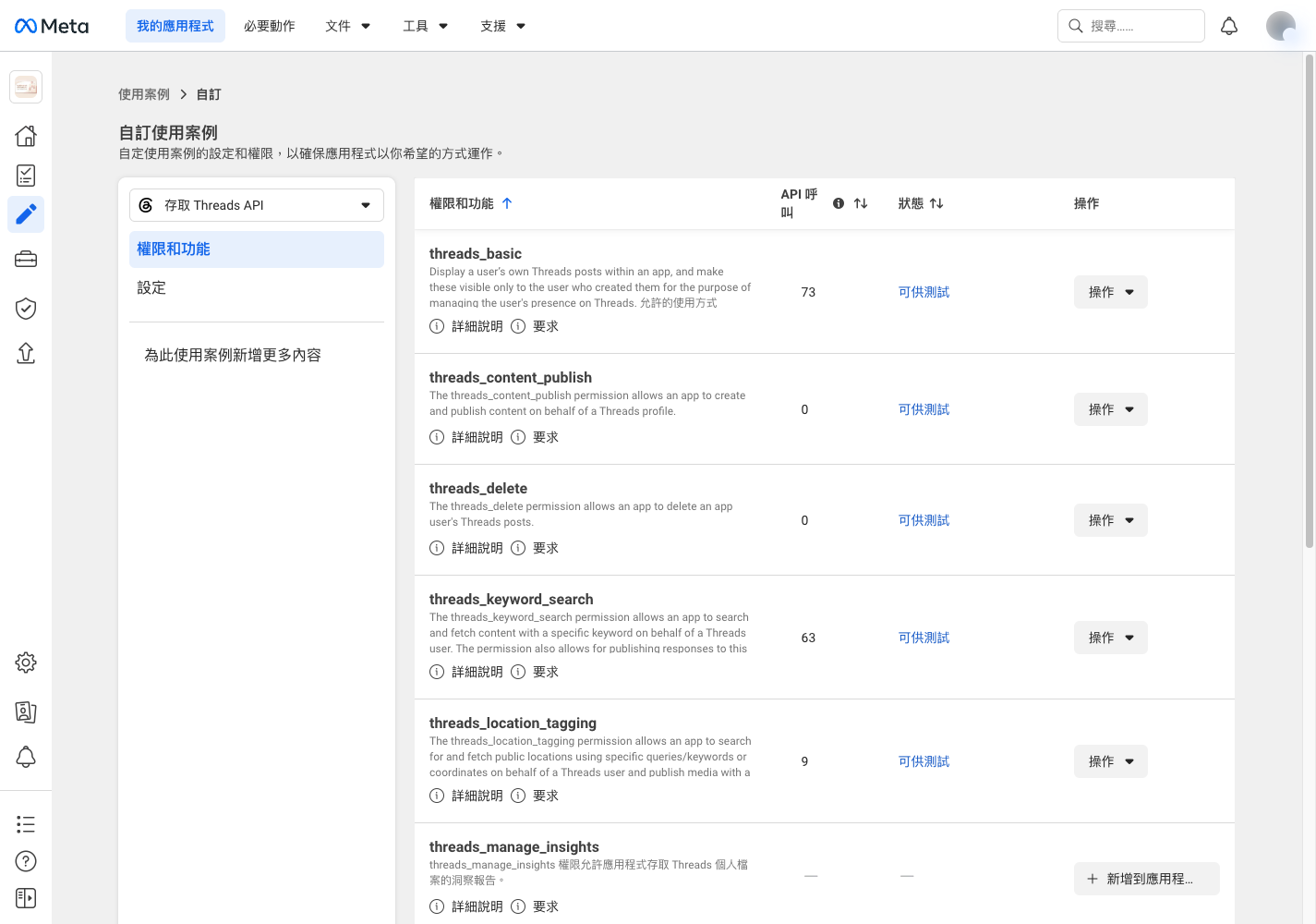
client_id has to use the App ID from the Threads settings page, not the Meta App ID. They are two different values, and the wrong one fails every time.5Keep the token from expiring
Auto-refresh
60 days and it expires. Run a schedule that refreshes about every 50 days and the token stays valid.
curl "https://graph.threads.net/refresh_access_token?grant_type=th_refresh_token&access_token=TOKEN"
curl "https://graph.facebook.com/v25.0/oauth/access_token?grant_type=fb_exchange_token&client_id=APP_ID&client_secret=APP_SECRET&fb_exchange_token=TOKEN"?Common questions
Is auto-posting to IG and Threads through the API allowed?
Yes. Getting a token through the official Graph API with a proper OAuth flow and posting automatically is allowed. What to avoid is unofficial scrapers and grey-area plugins, which do break the terms.
How do I apply for the Instagram API?
Switch IG to a business or creator account, create a Meta App, add the Instagram product, then generate a token with Graph API Explorer or Instagram Login. Your own account only needs development mode, no app review.
Do tokens expire?
Short-lived is about 1 to 2 hours, long-lived 60 days. Set a schedule to refresh about every 50 days and it keeps working. An FB Page token can be permanent.
Can I set up Threads without my own domain?
Yes. The redirect URL only receives the authorization code, it does not have to be a working site. With no domain, generate an HTTPS address free on Vercel / Netlify / GitHub Pages. If you only post to your own account, use the dashboard token generator and skip the redirect.
I tried this before and have a pile of old apps, should I delete them?
No need. One app covers all three platforms, so pick an existing one and carry on. If it is a mess, create a brand new one with a clear name and leave the old ones alone, they will not interfere.